StickerGrab
v1.2.1 Beta
Media ScraperWindows64-bit installer macOSUniversal DMG
Windows 10/11 & macOS 12+Standalone tool · Telegram & Discord export
 OrderlyWatch with optional Auto-apply · v1.0.0-beta.1 · Windows
Orderly Watch monitors folders for new files without moving anything automatically. Optional Auto-apply lets you automate a single trusted profile when you're ready.
The normal manual flow remains Preview → Run. Use Auto-apply only after checking a profile's rules.
 Separate monitoring from automatic action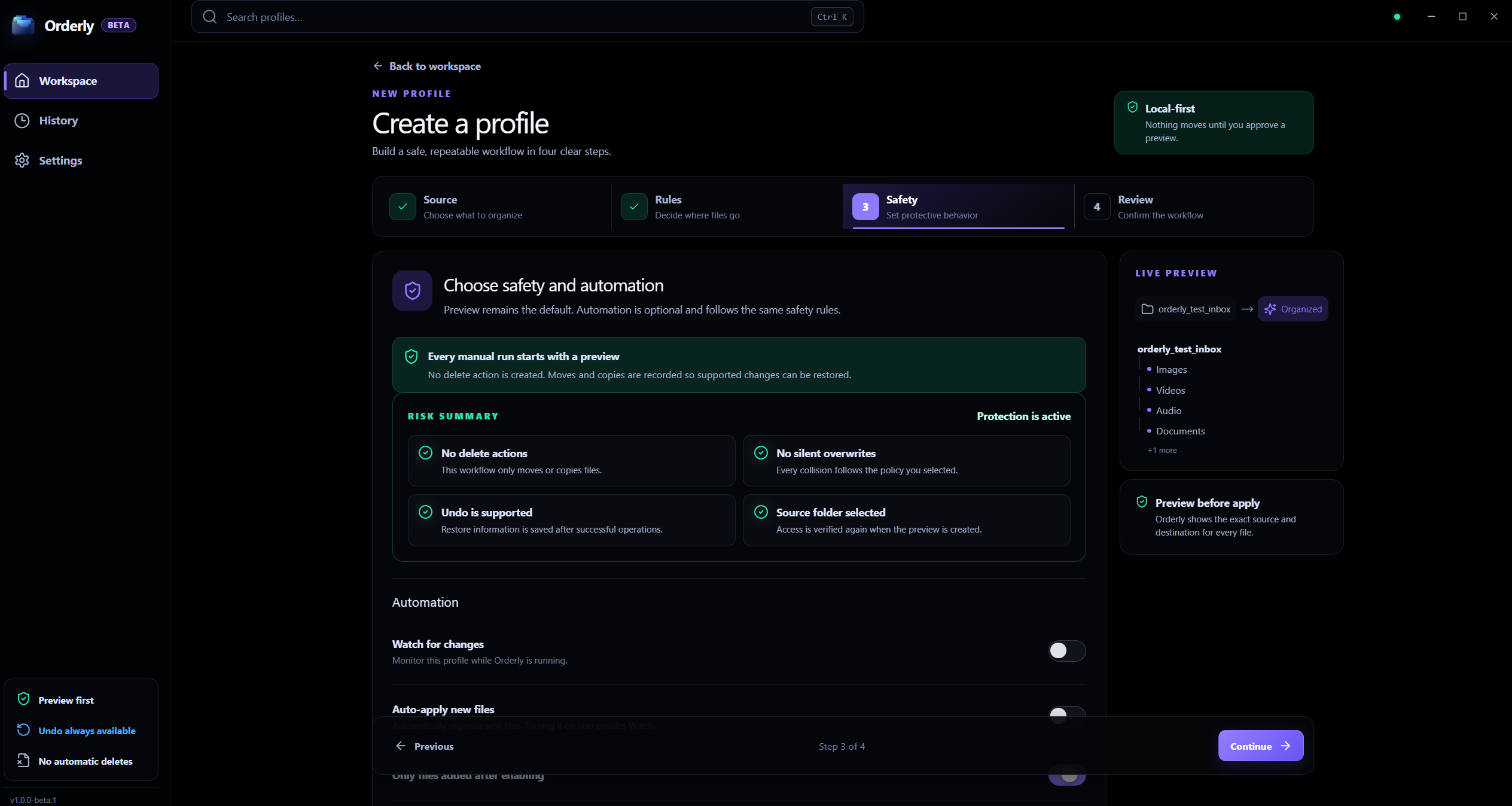
Watch and Auto-apply
Watch detects changes; Auto-apply is a separate opt-in. The values shown are sample settings.
Watch is not Auto-apply
Monitoring alone detects changes; it does not organize them.
Opt in to automation
Auto-apply must be enabled explicitly for a trusted profile.
A clear, reviewable workflow
Set up a profile manually first; only enable Auto-apply after its categories, filters, and collision choices are familiar.
Automation control
Interactive illustration with sample files. Real Orderly screens appear in the proof section below.
Monitors folders while Orderly is running. Detects new incoming files silently.
Explicit setting for one trusted profile. Automatically applies organization rules to newly detected files.
Auto-apply is optional, explicit, and limited to one profile in Free Beta.
Set up and review a folder profile manually before automating a routine.
Watch detects changes while Orderly is running; it does not organize files by itself.
Auto-apply is separate, optional, and limited to one profile in Free Beta.
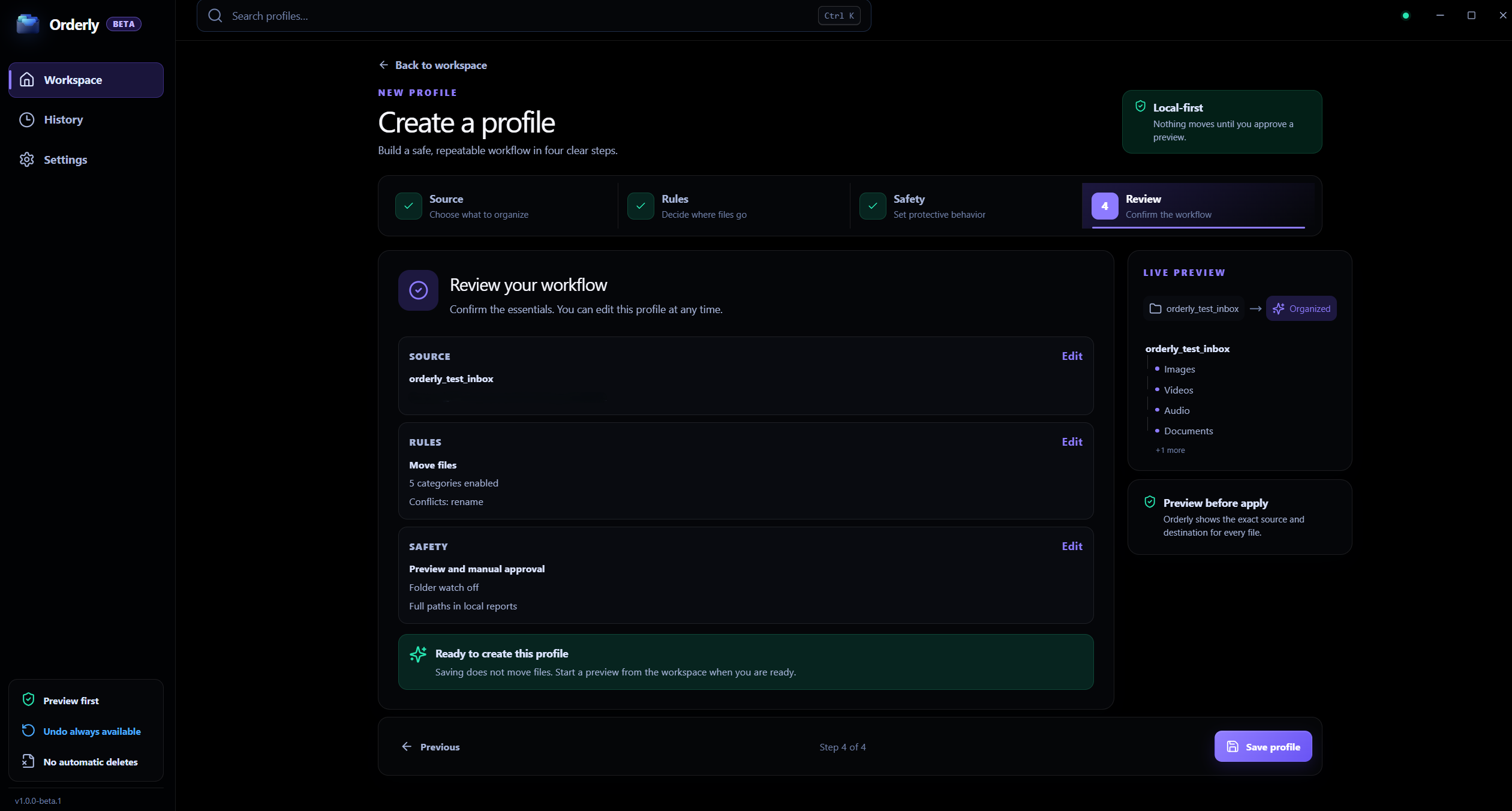
Inside the real app
Watch can monitor while Orderly runs. Auto-apply is optional and limited to one profile in Free Beta.
Start manually
Check folder scope, categories, filters, and collision choices first.
Optional automation
Watch alone detects changes; automatic file actions require explicit Auto-apply.
Automation control
Watch monitors for folder changes while Orderly is running; it only detects changes. Auto-apply is a separate opt-in setting that can organize new files for one profile in Free Beta.
Watch alone detects folder changes; it does not move files.
Auto-apply must be enabled explicitly for a profile whose rules you trust.
Free Beta allows Auto-apply for one profile; Watch itself has no one-profile limit.
Choose Quit Orderly from the tray menu to stop background watching.
Local processing, clearly scoped
For manual organization, the normal flow remains Preview → Run → Undo. Auto-apply can act on newly detected files, so enable it only after reviewing a trusted profile and keep backups of important files.
FAQ
No. Watch detects folder changes while Orderly is running. Auto-apply is a separate optional setting that must be enabled explicitly.
One profile may use Auto-apply in Free Beta. Watch can be enabled for profiles without that one-profile limit.
Closing the window keeps Orderly in the Windows system tray, so Watch can continue. Choose Quit Orderly from the tray menu to stop it.
Orderly · Watch and organize new files
Download Orderly Free Beta and see your plan before you make changes. Native on-device execution for Windows 10 & 11.